Monday, March 19, 2018

Sending Email from an ESXi host using netcat

Following script will use netcat tool to send report emails from an ESXi server. For those who don't know about netcat tool according to wikipedia:-
 Netcat (often abbreviated to nc) is a computer networking utility for reading from and writing to network connections using TCP or UDP. Netcat is designed to be a dependable back-end that can be used directly or easily driven by other programs and scripts.

Now create a file mail.sh and add following lines to it:-

{
sleep 5;
    echo 'HELO smtp.something.net';
        sleep 3;
            echo 'MAIL FROM:<root@somthing.net>';
                sleep 3;
                    echo 'RCPT TO: <admin@somthing.net>';
                        sleep 3;
                            echo 'DATA';
                            sleep 3;
                            echo 'Subject: Esxi RAID Status';
           OUTPUT="$(./opt/hp/hpssacli/bin/hpssacli controller all show config)"
                                sleep 5;
                                    echo "${OUTPUT}";
                                            echo '.';
                                            } | nc smtp_ip 25

This script will send RAID status of ESXi host to admin@somthing.net as per set cron. Modify smtp address ,RCP TO and MAIL FROM variable as your need and include desired command inside OUTPUT variable.
Don't forget to add execute permission
# chmod 755 mail.sh
Test Your script and you should get results something like this:-
Check your inbox and you'll results of OUTPUT variable command.

Sunday, March 11, 2018

Windows 10 unable to detect Wifi Network


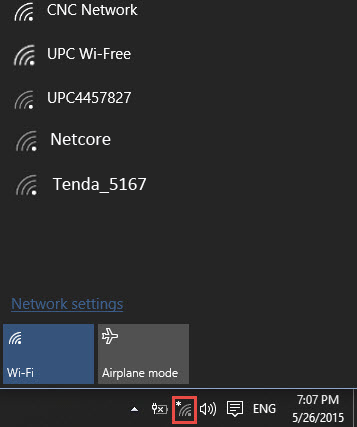
Well this happened on a pleasant Sunday morning when a strange wifi issue was reported by one my friend. User had just restarted the DLink wifi router from his laptop running Win10 and after restart same wifi network didn't appeared on available wifi list. Now the strangest part was other wifi networks available nearby were detected by only one network was not being showed in the list. So as typical troubleshooting step i disabled and enabled wifi adapter but it didn't worked. (Also tried updating driver using driver booster)

After a bit of rattling around in stumbled upon a post regarding wifi channel settings for win10 systems.
https://www.windows10forums.com/threads/cant-connect-to-routers-configured-on-channels-12-and-13.3334/
It clearly said wifi channels above 11 are not simply detected by windows so in order to fix this login to your route using default credentials just in case you haven't changed them and change the channel back to number 11 and restart it.

Once done wifi will be available in the wifi list and you can connect to it.
This happen's because by default channel setting are set to Auto so sometime after router reboot is done channel get updated to a new number may be higher than 11 in our case and windows stops detecting it.

Monday, March 5, 2018

Site to Site VPN using OpenVPN


Site-Site/Multi-Site VPN Setup using OPENVPN

                                                                               
Network Setup


Application : WAN Site to Multi-Site Connection
VPN Type : OpenVPN
VPN Mode : Shared Key
Net Type : Star Topology
Net Route : HQ-to-BR1 and HQ-to-BR2


Headquarters info
WAN IP : 172.16.0.102 (External,Static from ISP)
LAN IP : 192.168.50.254/24 (LAN,Static)

Branch1 info
WAN IP : 172.16.0.188 (External,Dynamic from ISP)
LAN IP : 192.168.51.254/24 (LAN,Static)

Branch2 info
WAN IP : 172.16.0.189 (External,Dynamic from ISP)
LAN IP : 192.168.52.254/24 (LAN,Static)

Instructions
1) For all Sites
a) Install OpenVPN, Incoming Firewall, Certificates
b) Config certificates

2) Headquarters(HQ)
a) Allow Incoming Firewalls

Name : oVPN HQ-BR1
Proto: UDP
Port : 1195

Name : oVPN HQ-BR2
Proto: UDP
Port : 1196

b) Create key certificates for BR1 and BR2

openvpn --genkey --secret /etc/openvpn/HQ-BR1.key
openvpn --genkey --secret /etc/openvpn/HQ-BR2.key

c) Copy "HQ-BR1.key" to Branch1 "/etc/openvpn/HQ-BR1.key"
Copy "HQ-BR2.key" to Branch2 "/etc/openvpn/HQ-BR2.key"

d) Create conf file in Headquarters "etc/openvpn/con_HQ-BR1.conf"

dev tun
port 1195
proto udp
ifconfig 10.8.144.50 10.8.144.51
route 192.168.51.0 255.255.255.0
comp-lzo
keepalive 10 60
persist-key
persist-tun
user nobody
group nobody
secret hq-br1.key
log con_hq-br1.log
status con_hq-br1-stat.log
verb 2

e) Create conf file in Headquarters "etc/openvpn/con_HQ-BR2.conf"

dev tun
port 1196
proto udp
ifconfig 10.8.145.50 10.8.145.51
route 192.168.52.0 255.255.255.0
comp-lzo
keepalive 10 60
persist-key
persist-tun
user nobody
group nobody
secret hq-br2.key
log con_hq-br2.log
status con_hq-br2-stat.log
verb 2

2) Branch1(BR1)
a) Allow Incoming Firewall

Name : oVPN HQ-BR1
Proto: UDP
Port : 1195

b) Create conf file in Branch1 "etc/openvpn/con_BR1-HQ.conf"

dev tun
port 1195
proto udp
remote 172.16.0.102 1195
ifconfig 10.8.144.51 10.8.144.50
route 192.168.50.0 255.255.255.0
comp-lzo
keepalive 10 60
persist-key
persist-tun
user nobody
group nobody
secret hq-br1.key
log con_br1-hq.log
status con_br1-hq-stat.log
verb 2

3) Branch2(BR2)
a) Allow Incoming Firewall

Name : oVPN HQ-BR2
Proto: UDP
Port : 1196

b) Create conf file in Branch2 "etc/openvpn/con_BR2-HQ.conf"

dev tun
port 1196
proto udp
remote 172.16.0.102 1196
ifconfig 10.8.145.51 10.8.145.50
route 192.168.50.0 255.255.255.0
comp-lzo
keepalive 10 60
persist-key
persist-tun
user nobody
group nobody
secret hq-br2.key
log con_br2-hq.log
status con_br2-hq-stat.log
verb 2

4) Checklist/Troubleshoot
a) Restart Headquarters, Branch1 and Branch2
b) From Headquarters
ping 10.8.144.50
ping 10.8.144.51
ping 10.8.145.50
ping 10.8.145.51
ping 192.168.51.254
ping 192.168.52.254
c) From Branch1
ping 10.8.144.50
ping 10.8.144.51
ping 192.168.50.254
d) From Branch2
ping 10.8.145.50
ping 10.8.145.51
ping 192.168.50.254
e) Check the following log files for errors
Headquarters /etc/openvpn/con_hq-br1.log
Headquarters /etc/openvpn/con_hq-br2.log
Branch1 /etc/openvpn/con_br1-hq.log
Branch2 /etc/openvpn/con_br2-hq.log
e) Check the following log files for status
Headquarters /etc/openvpn/con_hq-br1-stat.log
Headquarters /etc/openvpn/con_hq-br2-stat.log
Branch1 /etc/openvpn/con_br1-hq-stat.log
Branch1 /etc/openvpn/con_br2-hq-stat.log


List all running docker containers IP and name using a single command

Following command will allow admin to get list of all running containers IP and Name in one command # docker ps -q | xargs -n 1 docker in...